
 En
En Fr
Fr De
De Ru
Ru
How to convert MIDI to WAV with the best MIDI to WAV Converter, MIDI to .WAV Converter, MIDI2WAV Converter?
 Online MIDI to WAV Converter, install it and run.
To start, double-click the MIDI to WAV Converter shortcut on the Desktop.

Or you can go to the Start menu and click MIDI to WAV Converter.

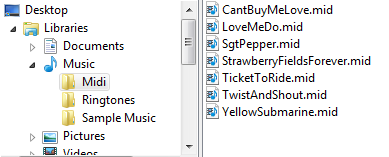
At the upper left, navigate to the location where you have the MIDI files that you want to convert. In this example, there is a MIDI folder in the Music library, and these are the files I want to convert.
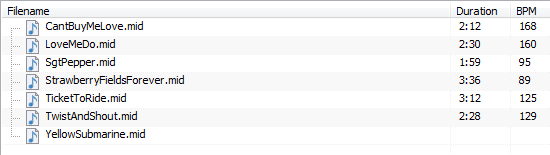
Select the MIDI files and drag them to the middle window.
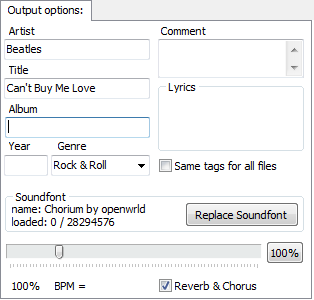
Now, you can enter specific output options for the midi files. Select a file name and then on the right hand side, specify the artist name, title, album, year, genre, soundfont and other options.
You can use the music player controls in the middle of the window if you want to hear each MIDI track. This can be handy if you have MIDI files without identifying names, and you want to know what tunes they actually are.

Next, in the Output area at the bottom of the window, you can set things like what the MIDI converter should do if the output file already exists, where to put the output, if you want to preserve the folder structure and whether to delete the source files.

In this example we are converting midi files to wav format, so select .wav (MPEG-1 Audio Layer 3) in the Output format dropdown.

Don’t forget to click the Settings button, where you will find more options for the mode, quality, sample rate, bit rate, filtering and highpass settings. After selecting all of the Output options, you are ready to start the conversion process.
Click  .
.
MIDI2WAV Converter displays the progress of the MIDI to WAV conversion:
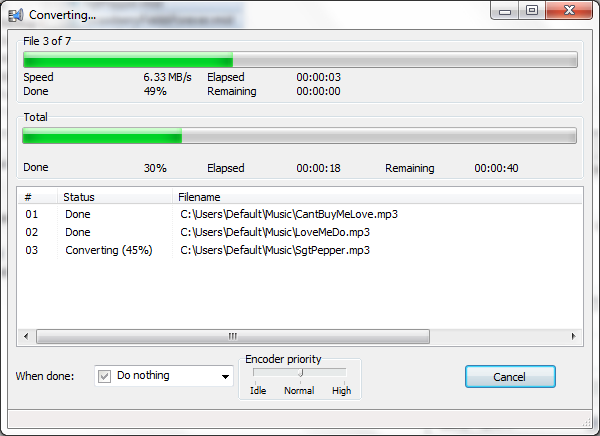
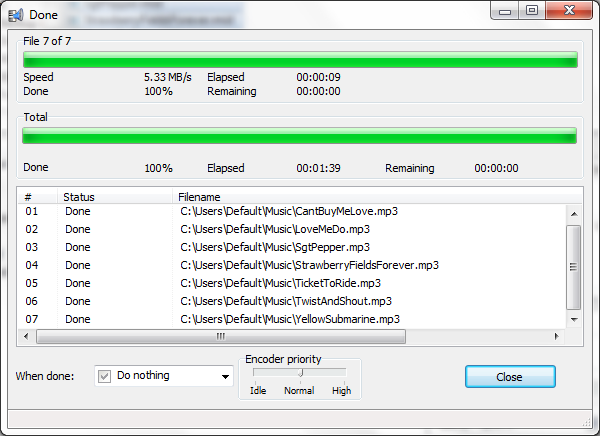
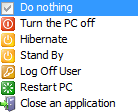
You can tell the program what to do when the MIDI conversion is finished. Select a value in the When done dropdown box. For example, you might want to have the computer go into hibernation when it’s done converting the files.
To go back to the main program, click Close on the progress window and then it takes you back to the Magic MIDI to WAV Converter.
Tags
Convert MIDI to WAV | MIDI WAV Downloader | MIDI WAV Converter | MIDI Converter WAV | MIDIs to WAV | Download from MIDI to WAV | best MIDI to WAV Converter | best midi2wav converter | Free Download MIDI to WAV | Download Online MIDI to WAV
